Stay Obssd
Choose the right poster shape and export quality
Understand aspect ratios, short-edge resolution and readable margins before you export a story, portrait post or square workout poster.
By Stay Obssd · Product guide · English
Shape and resolution are separate choices
An aspect ratio describes the shape of the poster. A resolution describes how many pixels it contains. A 9:16 poster stays tall whether you export it at a short edge of 720 or 1080 pixels. Increasing quality gives that same composition more pixels; it does not turn a square into a story or create extra room between two labels.
Choose the shape based on where the finished artwork will sit. A full-screen vertical story has different constraints from a square image shown in a grid. If you are unsure, make the first version in one shape, save it, and review it in the destination's posting preview before preparing another version. Platforms can crop or add their own overlays, so a matching ratio is a useful starting point rather than a promise about every display.
| Shape | A useful starting point | At a 1080-pixel short edge |
|---|---|---|
| 9:16 | A vertical story or full-screen clip | 1080 × 1920 |
| 4:5 | A portrait composition in a feed | 1080 × 1350 |
| 1:1 | A square post or reusable tile | 1080 × 1080 |
Recheck the composition after changing Ratio
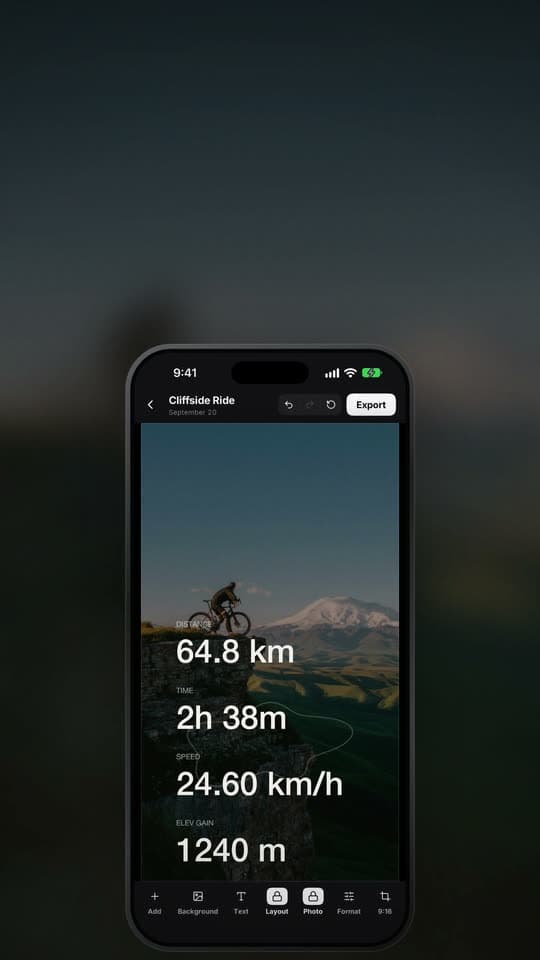
Use Ratio in the editor to choose the poster's proportions. A landscape route, a wide activity name and a stacked calendar will not all need the same layout when you move from 9:16 to 1:1. Review the artwork after the change instead of assuming that the first arrangement is equally effective in both shapes.
Keep a margin around the essential information. On a story, leave the main number away from the extreme top and bottom where a viewer's app may draw an account name, reply field or playback controls. In a square, check the distance between labels and the left and right edges. There is no one margin that guarantees every social app will leave an area untouched, so use its final preview as your last check.
Background framing deserves a second look too. A photo that puts the runner beside the stats in a tall poster may put the runner directly behind them in a square. Adjust the background's framing or move the stat block so that the subject and information remain distinct.
Pick enough pixels for the job
The export quality choices use the poster's short edge: Standard is 720 pixels, High is 1080 pixels and Max is 1920 pixels. These are not three different layouts. For example, a tall 9:16 design at High is 1080 × 1920, while the same shape at Standard is 720 × 1280. A 4:5 design at High is 1080 × 1350, not 864 × 1080.
Use Standard when you want a quick test of composition, motion or the saving workflow. High is a useful next step when you want a larger social-sharing file. Max is for cases where you actually need the larger output and the device has time and memory to render it. Extra pixels increase the work; they cannot recover detail that was missing from a small source photo.
For a clip, frame rate is another independent choice. Thirty frames per second is the default. Sixty can make fast movement smoother, but roughly doubles the number of frames the app must render for the same duration. If an export is slow, reducing quality or frame rate is more effective than repeatedly tapping Export.
Format the numbers for a small screen
Use Format for units, distance decimals and whether a duration includes seconds. These settings change how the workout is written; they do not change the poster's ratio. Decide whether an extra decimal helps the story. A milestone distance can often be read more quickly than a group of small, equally prominent values.
Preview the composition at the size a viewer is likely to see. A pace needs its unit, a heart-rate number needs context, and a short label can be more useful than an additional decorative line. Keep the number and the label visually connected so that a viewer does not have to search across the poster to interpret them.
Finally, open the saved PNG or MP4 and check it outside the editor. Review the edges, labels and background crop, then inspect the destination's posting preview. Keep your original exported file so that a later version can be shared from the same source instead of from a screenshot of an already compressed post.